Generating Content with Loom
In the sidebar, navigate to Loom.
Select the relevant client and click “New content”. Here you can choose to generate content, create content or upload content:
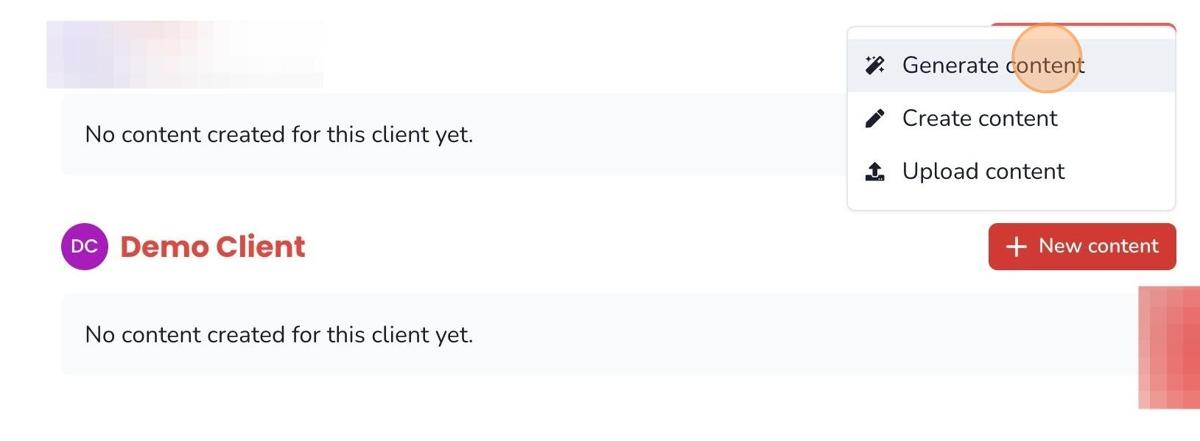
Content Creation Options
Generate New Content
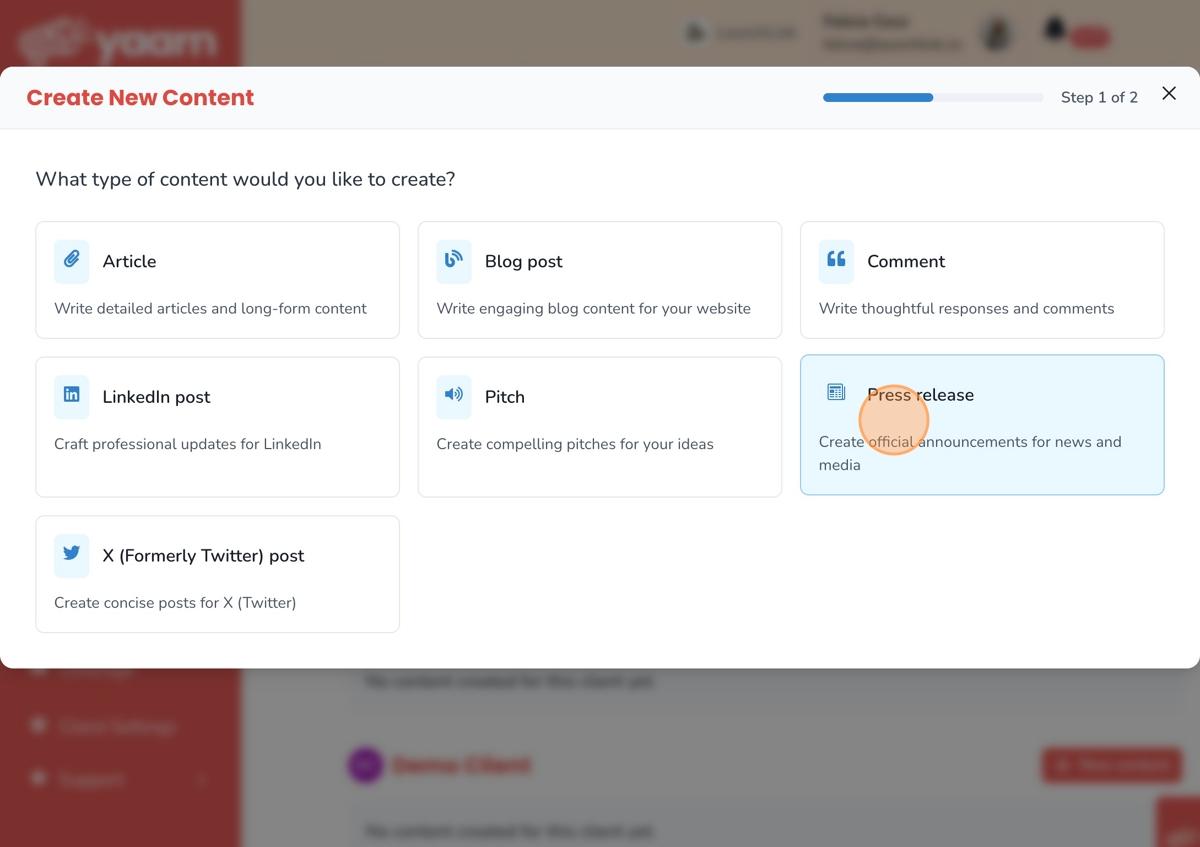
Select this tool to generate high-quality PR content with AI. Click on the Generate Content button to bring up the content generation menu. From here, you can choose from a variety of different types of content, such as articles, blogs, pitches and more.
Create Content
Select this tool if you would like to create a new piece of content without having the system generate it to begin with. You can always use AI tools after creating it.
Upload Content
Select this tool to enhance existing content with AI. You can take any written material and edit it with our suite of AI tools.
Using the Content Generator
Let’s use Loom to generate a new press release for Demo Client.
- Select the type of content you’d like to generate.
-
Enter any relevant details about the content you’d like Loom to write. A title will auto-generate based on this information.
-
Hit the Tab button on your keyboard to accept the title, or click the recycle button to generate a new title.
-
Click “Generate”
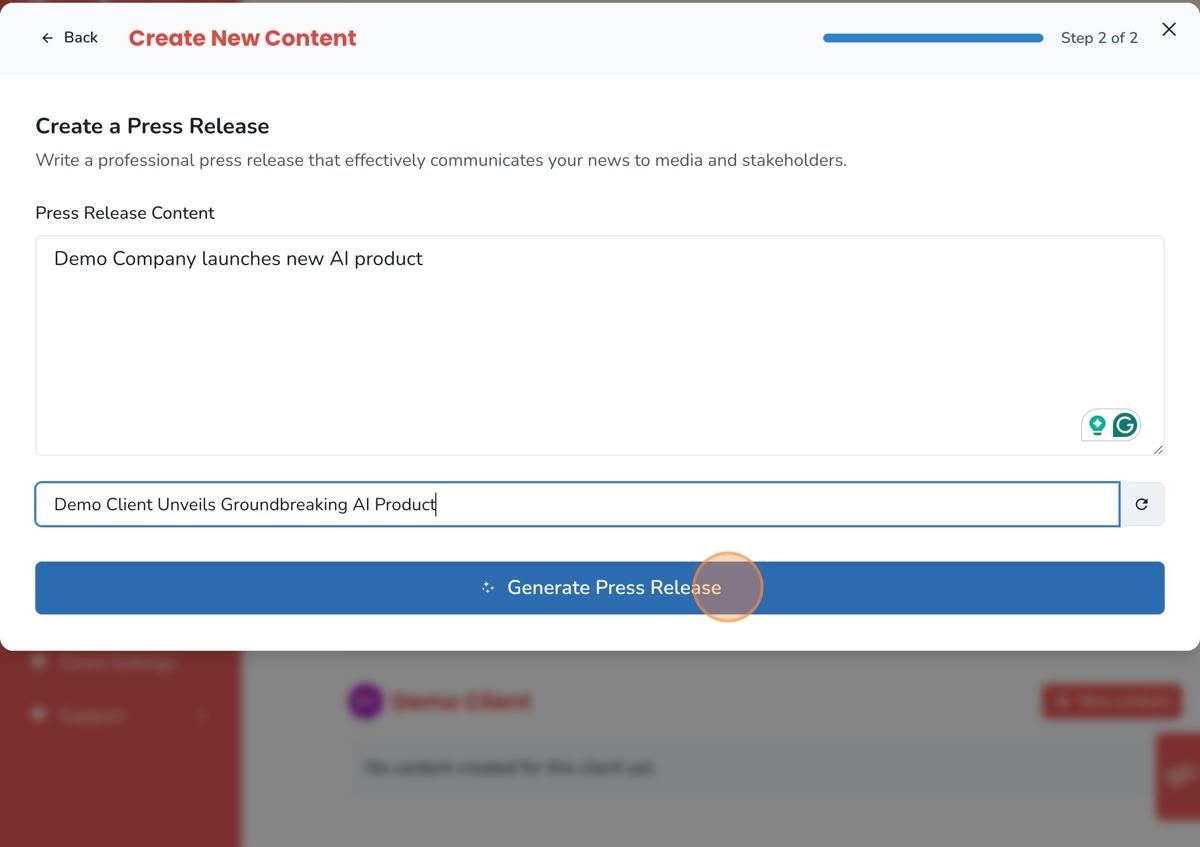
A preview of your content will now start to generate. Click ‘Regenerate” for a new version or “Complete” to start editing.
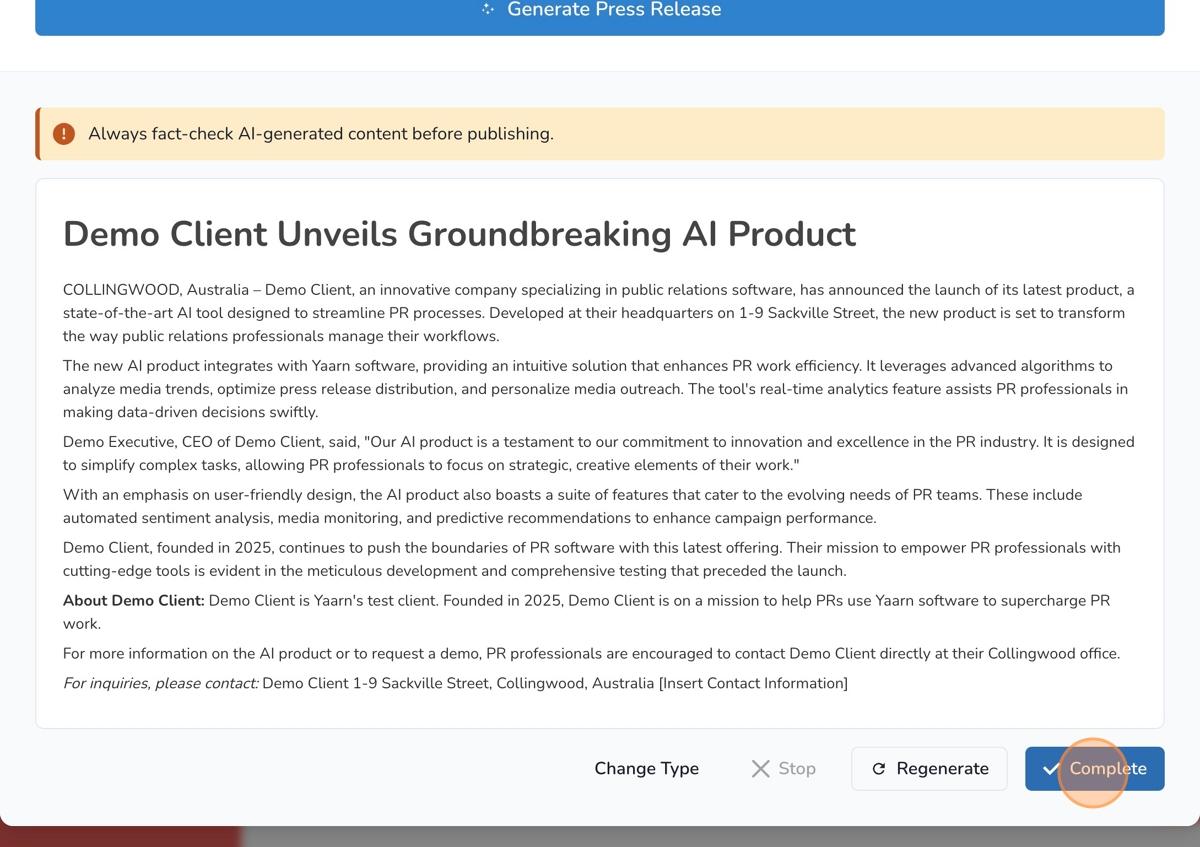
AI Editing Tools
Loom has a built-in, AI-powered word processor to tidy up content. Here are the key features:
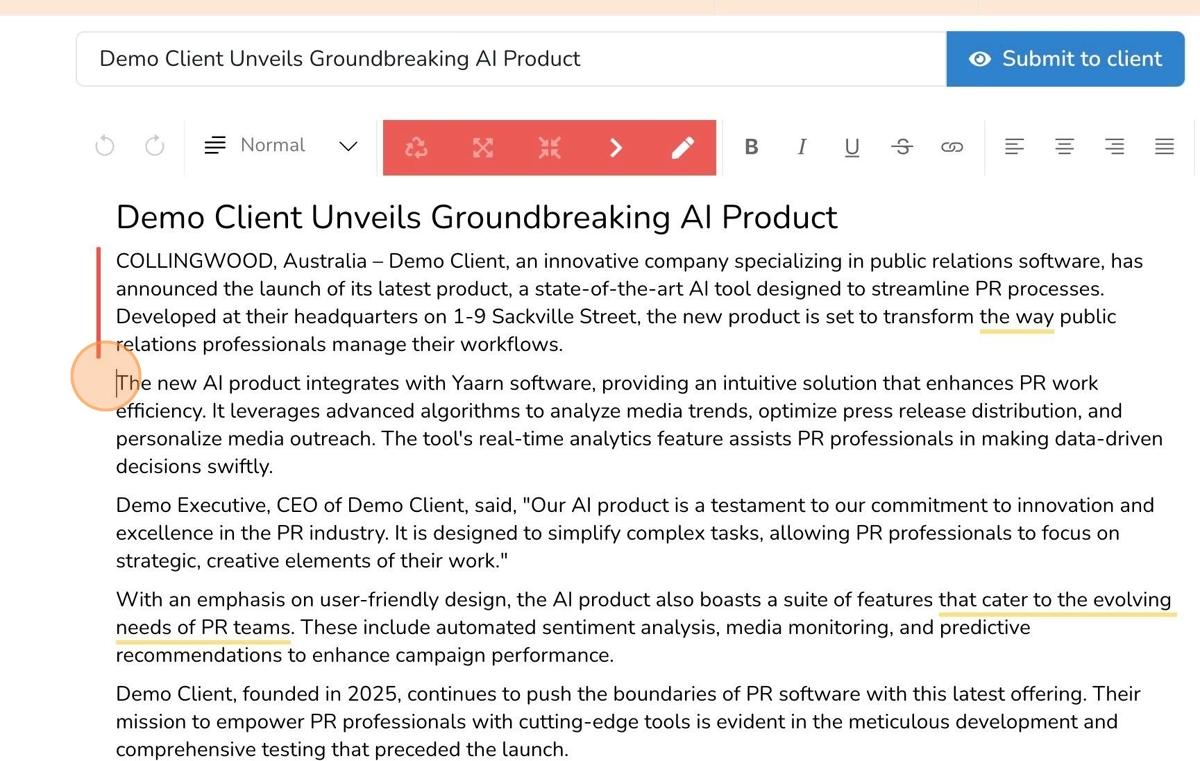
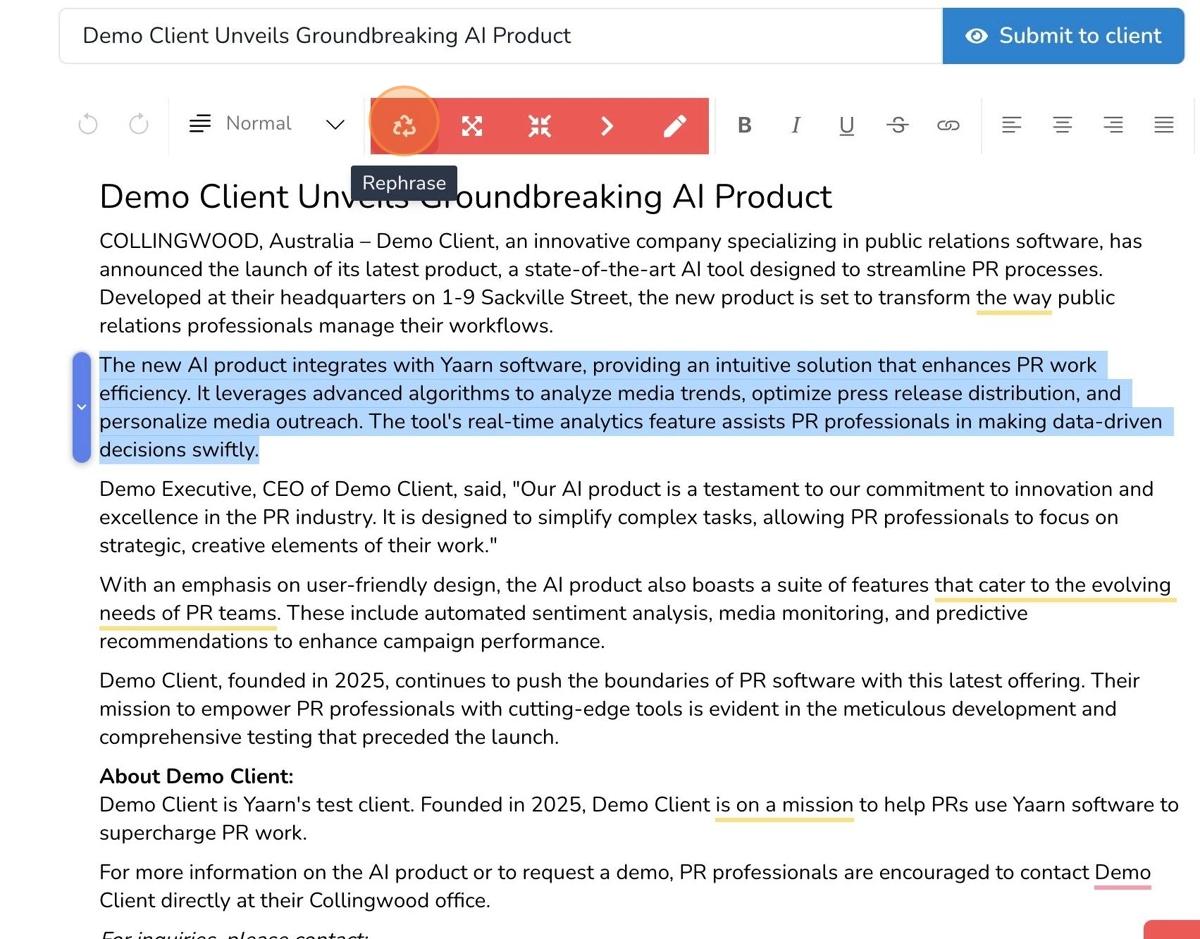
Rephrase
Select a portion of text and click the Rephrase button to generate a new version of the selected text.
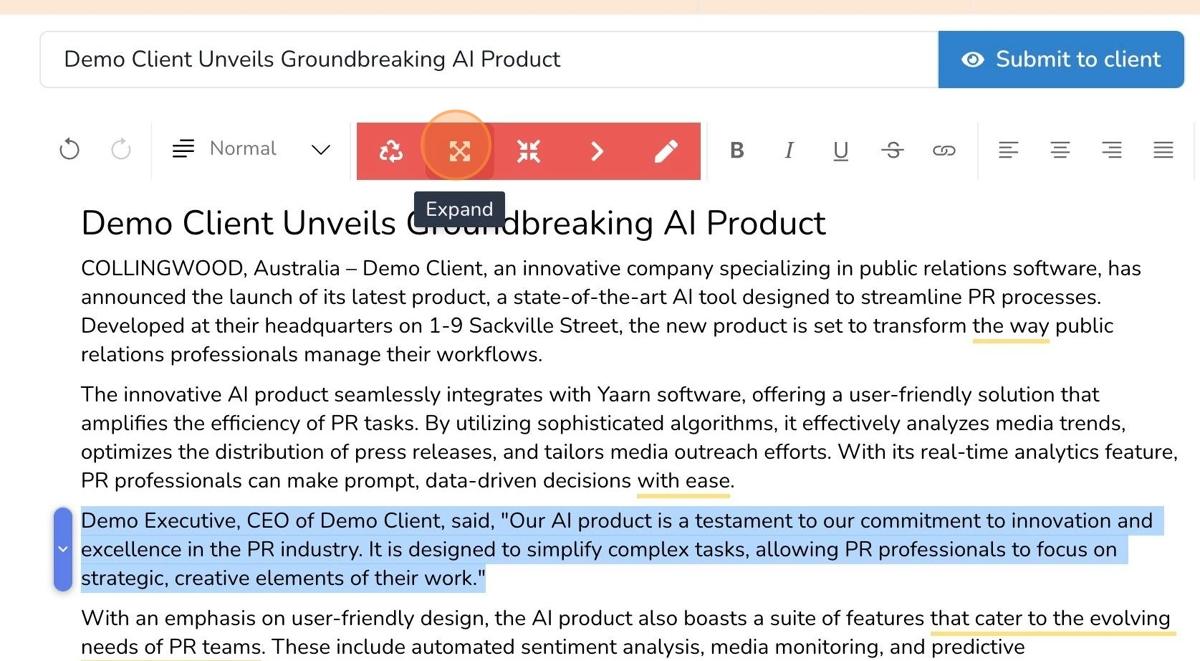
Expand
Select a portion of text and click the Expand button to elaborate on the selected text.
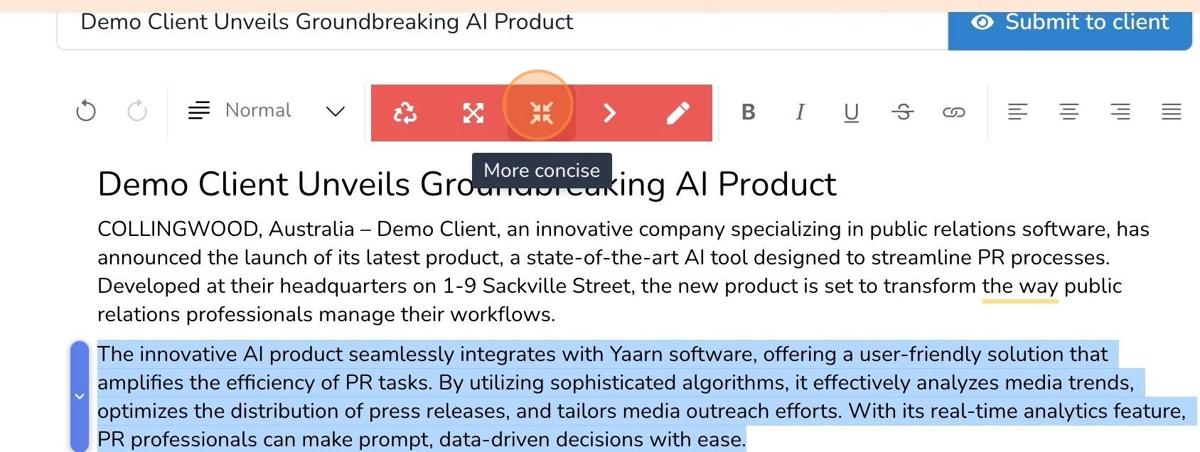
Concise
Select a portion of text and click the Concise button to condense the selected text.
Custom Edit
Add your own additional instructions to edit a selected portion of text.
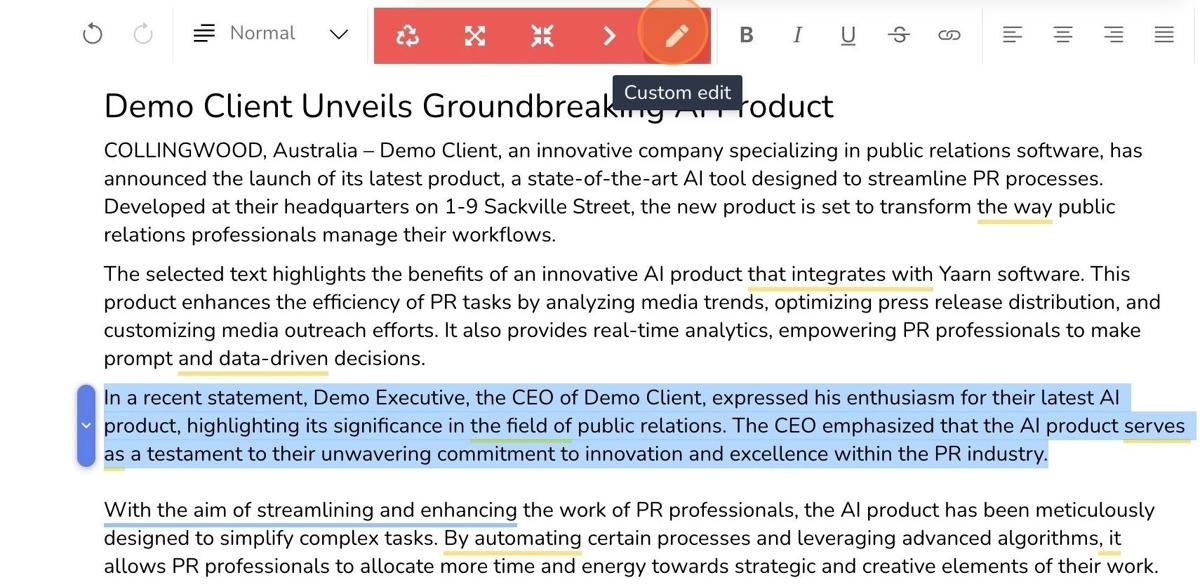
Each tool will show a before and after for each change. If you’d like it to try again, click ‘Regenerate”. If you’re happy with the change, click “Approve” to add it to the document.
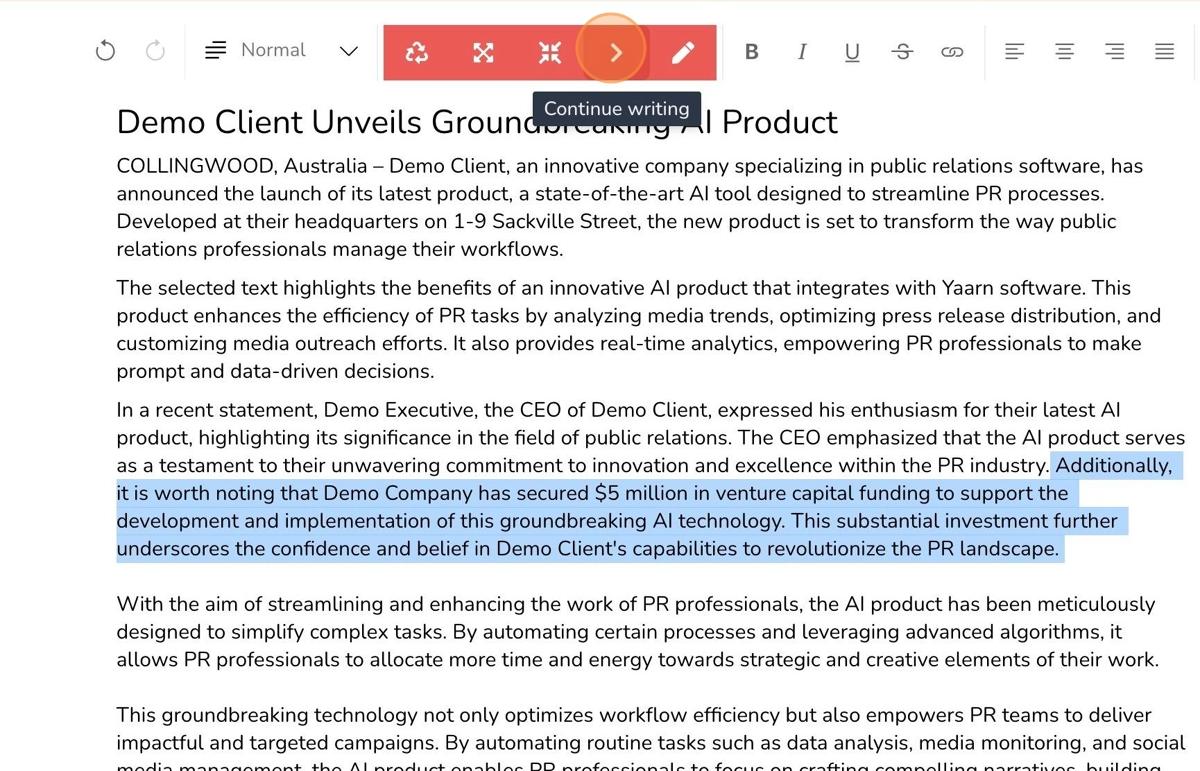
Continue Writing
Use this tool to continue building on a story. This is great for when you need to meet a longer word count and need extra words.
Finalizing Content
Once you’re happy with the article, you can:
- Send it to a client for review by clicking “Submit to client”
- Leave it in drafts by clicking any button to leave the page (the article will be saved automatically)