Welcome to your Dashboard
The dashboard is your central place for tracking activities, metrics, news and more across all of your clients.
When you log into Pressto, you’ll automatically be taken to your dashboard.
Here you can see:
- Suggested coverage across your clients
- Your daily news wrap
- Key metrics about your clients
- Key activities allocated to your clients
Right-click on coverage to read more, view the original article, or assign the article to the relevant client’s coverage tracker.
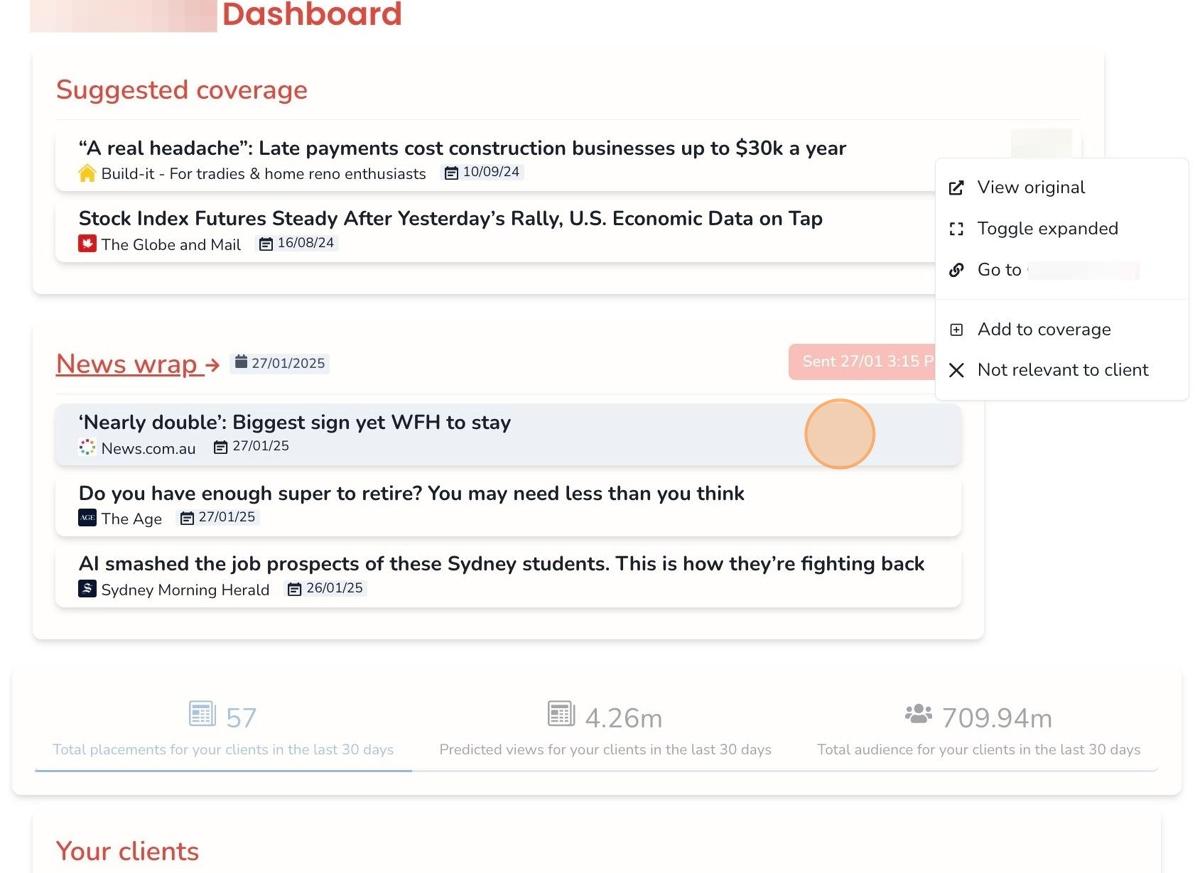
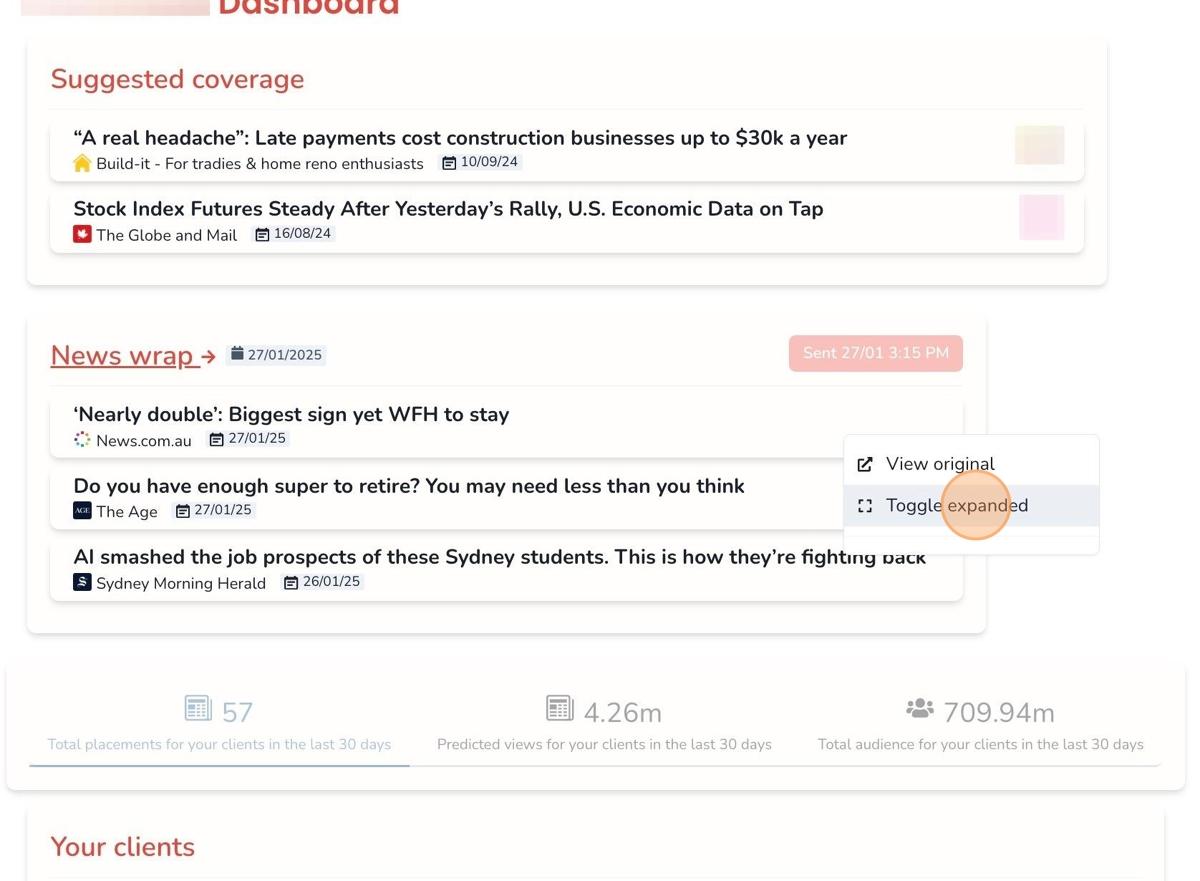
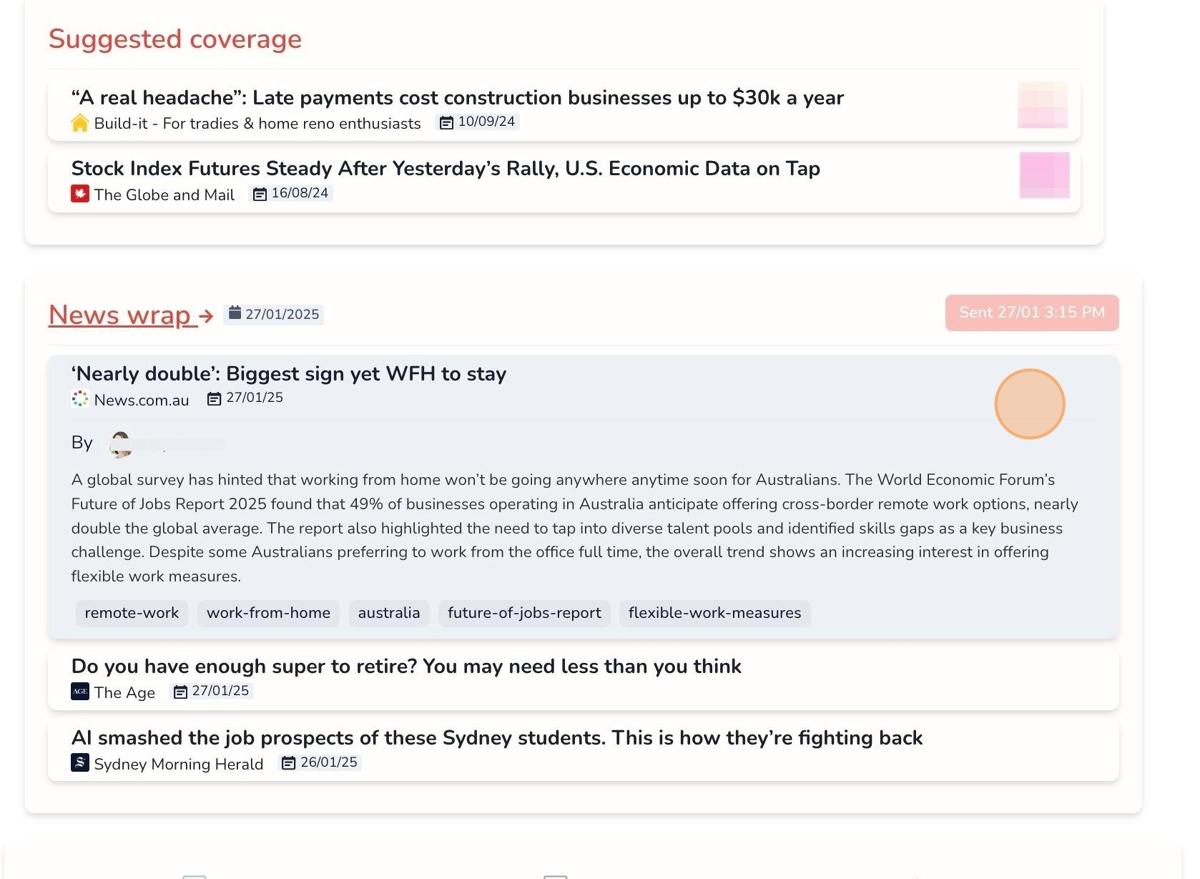
Right-click on news articles to read a summary, or visit the article on the news site.
Hint: We’ll be adding more features to the dashboard shortly. For suggestions, email us at support@heypressto.ai
Activity Tracker
Activity tracker can be used in 2 ways:
- View all of your individual tasks across all clients
- View all of a client’s account activities
User Activities
Coming soon!
Client Activities
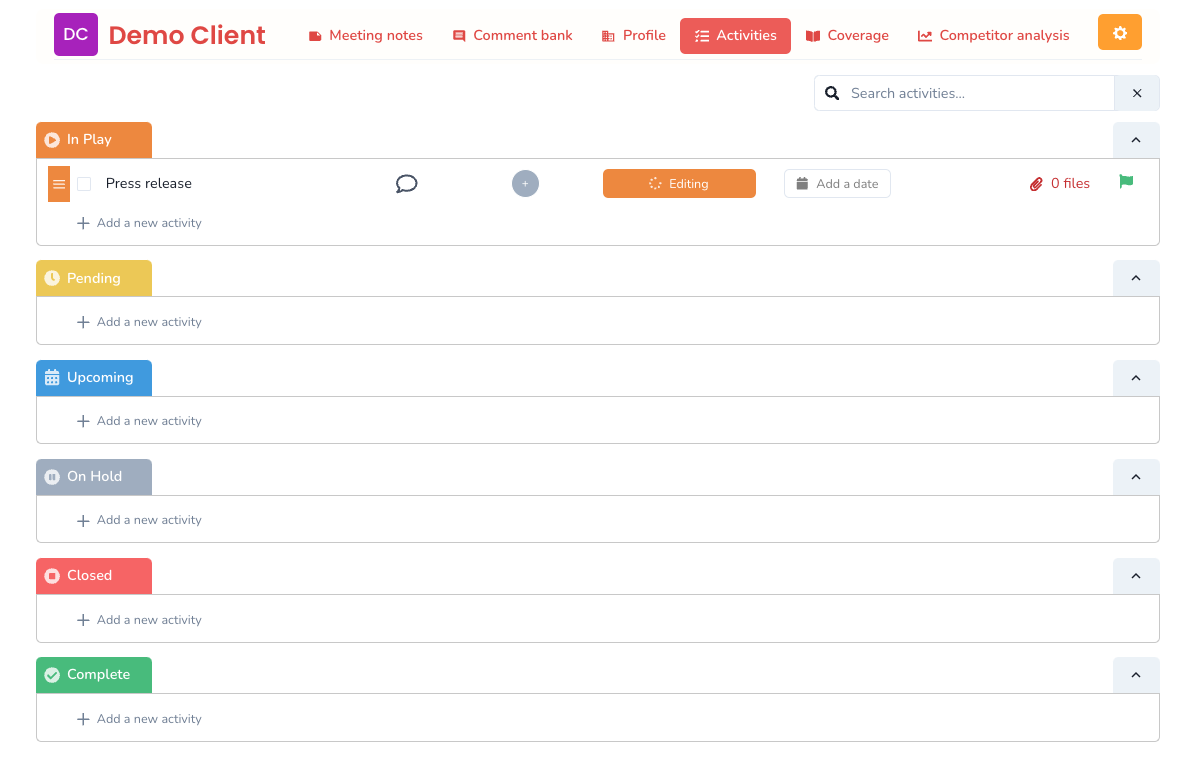
In the sidebar click → Clients → Client’s Name → Activities (or click Activities at the top of the client profile page). This will show you the client’s activities page.
Clients can see the same version of this page.
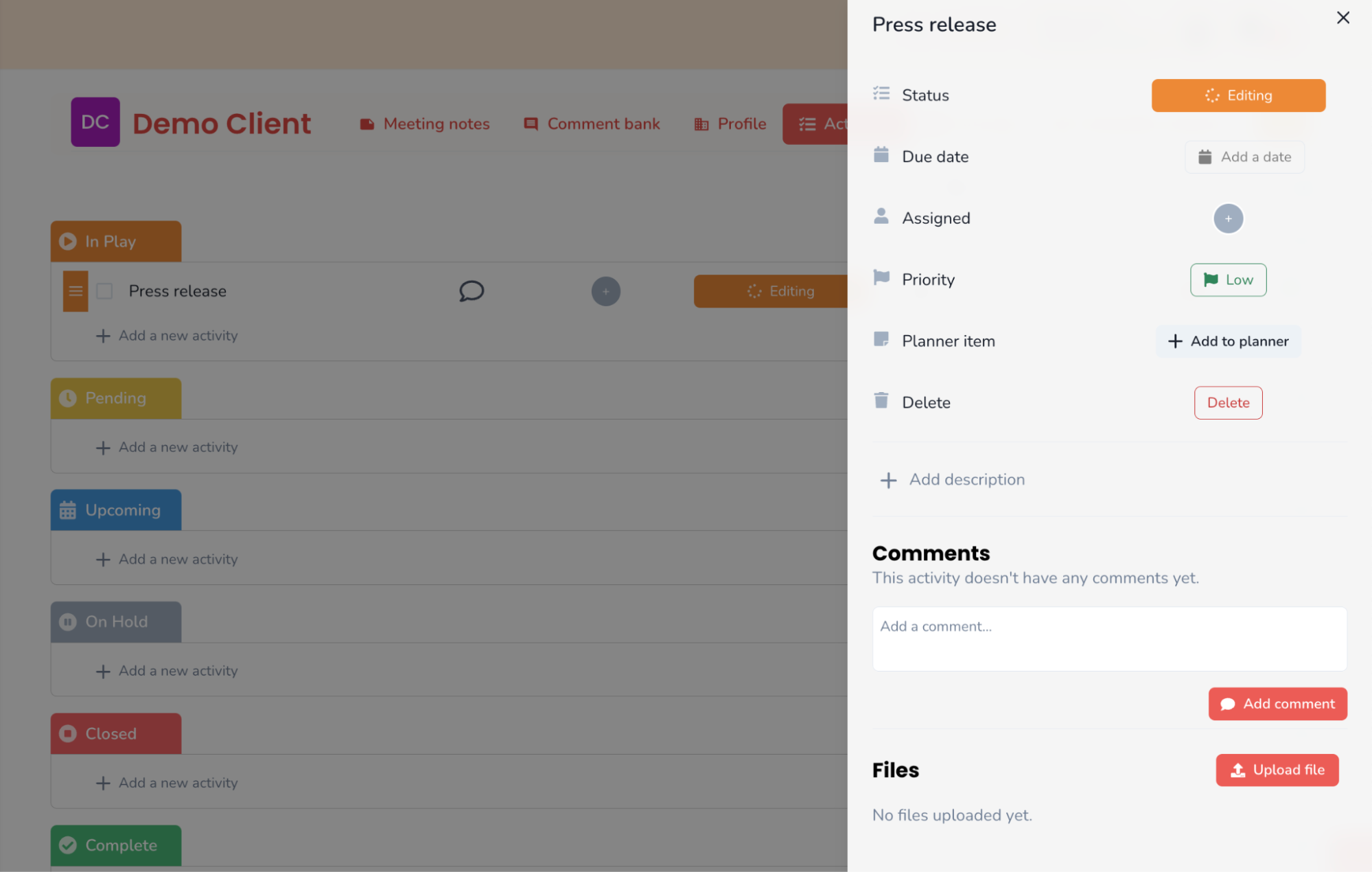
Here you can track activities you’re working on as part of the account, add relevant notes, comments and files, assign team members tasks and keep track of status, deadlines and priorities.
Managing Tasks
To add a new task, click Add a new activity under the relevant heading, enter the name of the task and click Add.
To edit a task, hover over the task and click the Edit button that will appear. That will bring up the task sidebar that allows you to add more information, see comment history or delete the task. You can also right-click on a task to edit, delete or duplicate a task.
Tasks will automatically be grouped under status headings. The most high-priority and urgent tasks will also appear on your personal dashboard as well as the client’s dashboard.
Client Activity Page
Activity Task Side Bar