Adding users
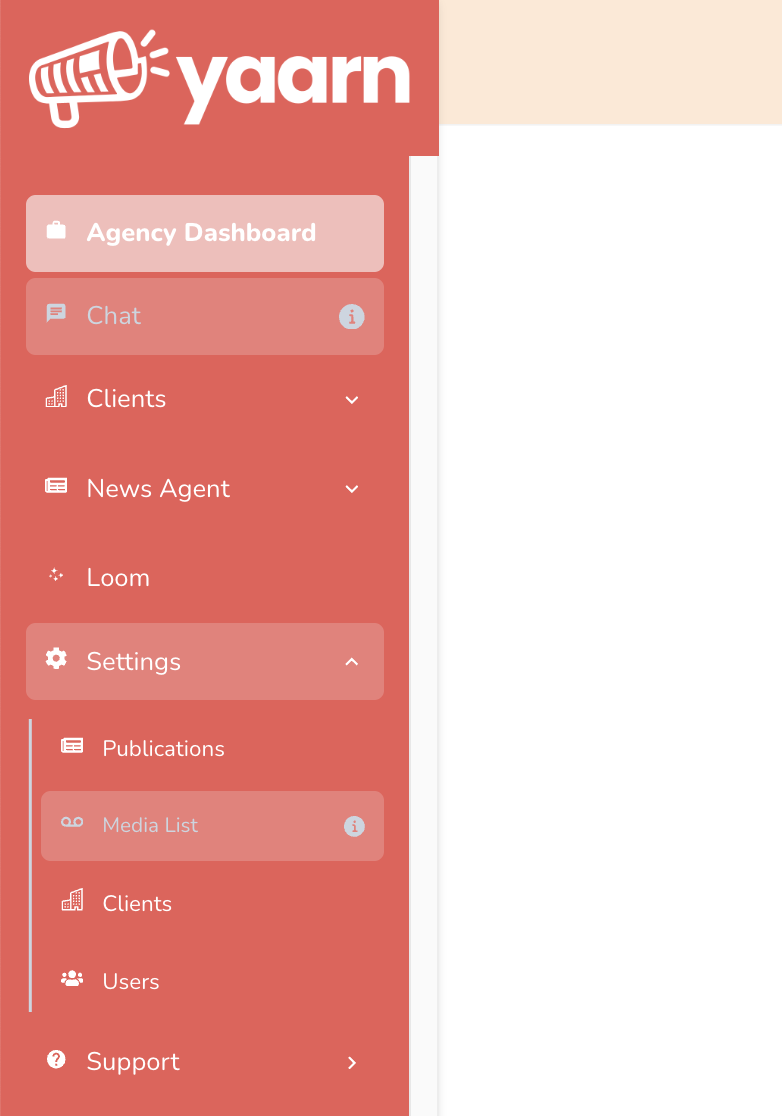
In the sidebar, click the Settings tab → Users.
Click Invite User. Enter their name and email and choose whether you’d like them to be a standard user (Agency) or have access to restricted controls and settings (Admin). Click Submit and your new user is created.
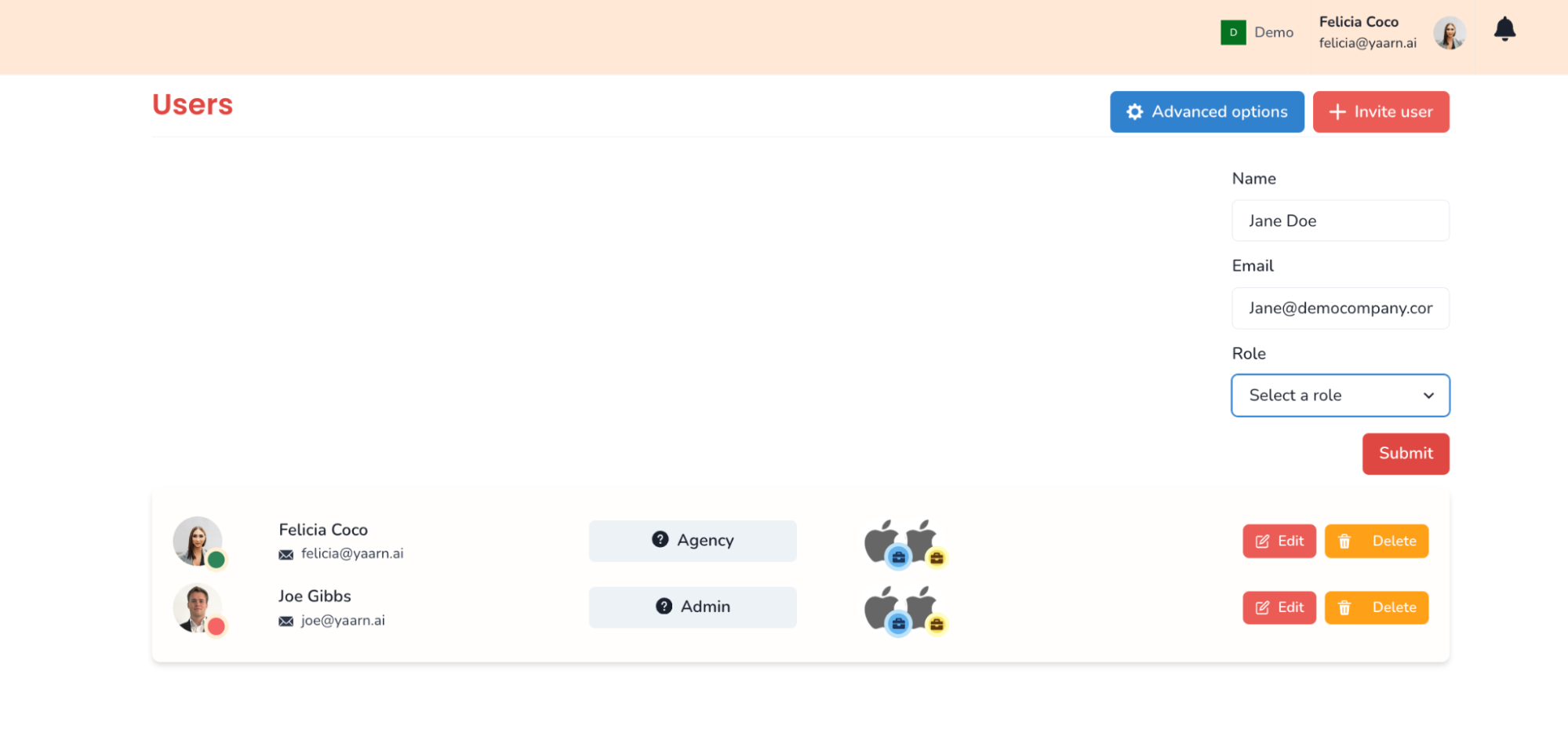
Your new user will receive an email with a link to set up their account.
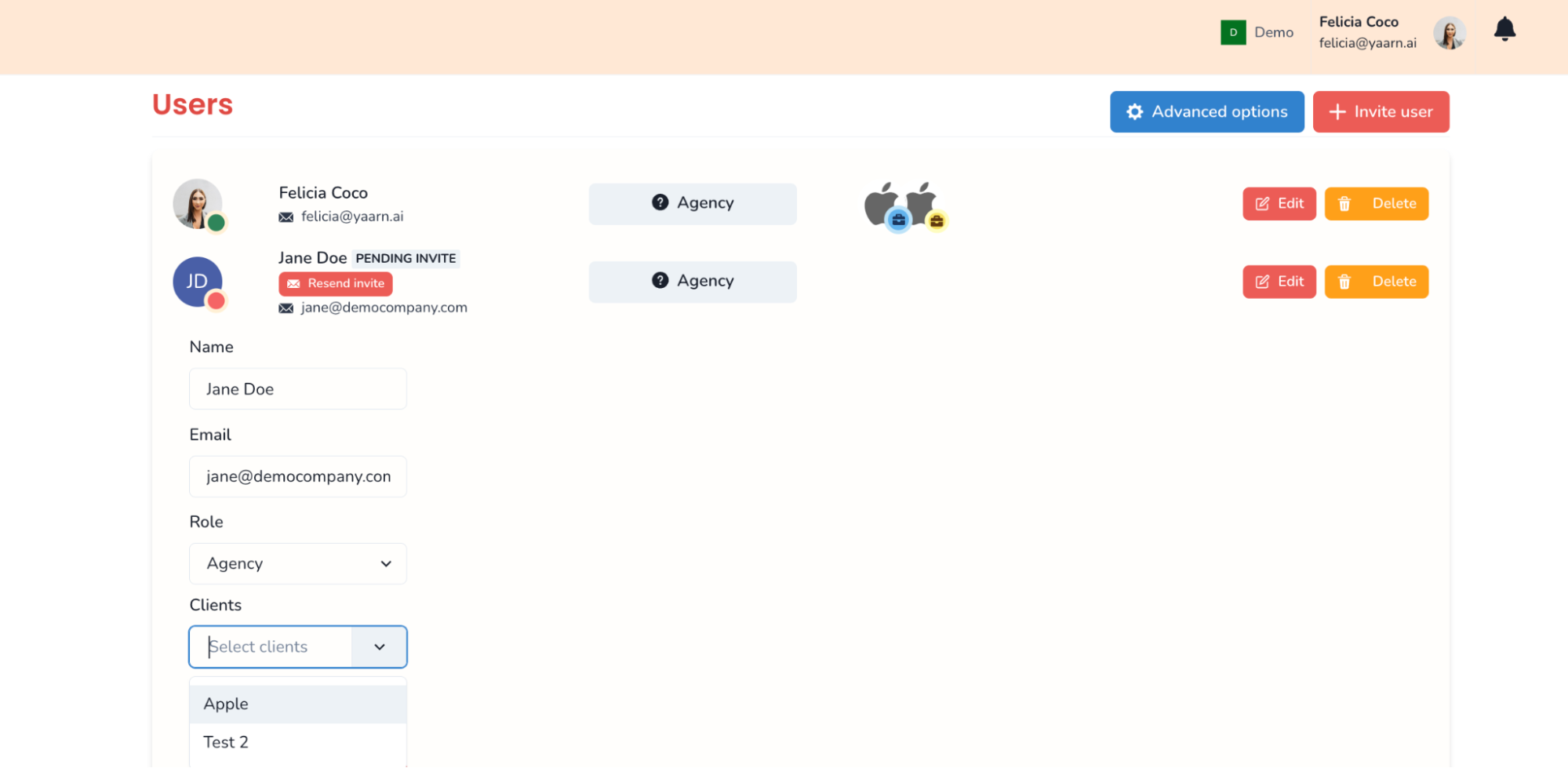
Tip: If they didn’t receive the invitation or the link has expired, you can click Resend Invite.
Once a user has been added, click Edit and assign them clients from the dropdown list.
Tip: If their client doesn’t exist, you’ll need to create a new client. You can assign team members to clients on the add client page or on client profile pages.
To permanently delete a user click the Delete button.
To archive a user (without permanently deleting them), click the Archive button.
To restrict or change permissions for standard Agency users, click the Advanced Options button → Agency text and check or uncheck the permissions.